Links to internal pages
Internal links (to a Section or Content Item) are a very common way of creating links within T4.
Integrity of internal links
Why create links this way instead of just using a normal web address (URL)?
Always use internal links to any T4 section (page) visible in your Site Structure, because if the destination section is later moved elsewhere or renamed, internal links will be preserved.
A page's URL in T4 can change for a number of reasons. Using an internal link will avoid any issues related to this.
If an internal link becomes invalid due to removal of the destination page, the underlying text (anchor text) will remain displayed but a link won’t generate. So the text and meaning are preserved but without the 'added-value' link.
Section links and Content links
Usually Section Links are the method to use, for links to Internal (T4) pages.
Only use Content Links if there is a good reason to link to content part-way down a page.
Internal links cannot be cut/copied and pasted to and from your computer's clipboard.
They can only be:
- created using Insert Section Link or Insert Content Link
- Duplicated along with a Content Item - if a Content Item is Duplicated, all internal links will be preserved in the copy
Section Links
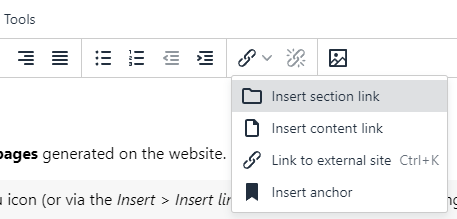
Sections in T4 are equivalent to pages generated on the website.
Use this Insert Section Link menu icon for entering a link to one of the Sections (pages) visible in your Site Structure.
Click on the folder name representing the Section to link to. The link will be inserted, with the link text equivalent to the Section name. The link text can be edited by double-clicking the link.
Content Links
Content Links link directly to Content Items in T4. These direct the visitor to a particular content item on a page rather than the top of the page like a section link does.
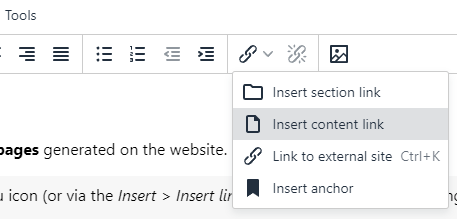
Use this Insert Content Link menu icon for entering a link to a Content Item within one of the sections (pages) visible in your Site Structure.
Click on the folder name representing the page to link to, then on the next screen select the Content Item to link to.
The link will be inserted, with the link text equivalent to the Content Item name. The link text can be edited directly by double-clicking the link.
On the generated web page, the link will go to the destination page then scroll down to the content from the selected Content Item.
Content Links will not work on Preview - only on the Published page.
When internal links can't be used
If the section you want to link to isn't visible in your Site Structure, you won't be able to create an internal link. In this case then create the link as an External links instead. It may be possible to expand your access to other sections - ask webteam@uhi.ac.uk
An internal Section link can be made to an Event Listing or News Listing page, however links to any specific News article or Event page should be made as Content links or External links instead.
Links from partner sites (e.g. www.nwh.uhi.ac.uk) to the main university site www.uhi.ac.uk - and vice versa - also need to be set up as External links.