Tables
Use tables for tabular data only - not for laying out areas of content.
If there's a reasonable paragraph or list alternative to using a table for presenting repeating data, use it.
Don't copy and paste a table from other software - it will contain additional code which can be problematic. If it's necessary to use a table from elsewhere, either:
- recreate it from scratch in the HTML editor (explained below)
- save it as a PDF from the original software and link to it as a Media Library document (especially if the table is large)
- ask Webteam to create an HTML version (especially if the table is complex)
Disadvantages of using HTML tables for content presentation:
- they do not scale down flexibly for easy viewing on mobile screens, and can often become very difficult to read on small screens if large and complex
- they can quickly get complicated and obfuscate the data
If the table is relatively small and has no more than 4 columns then it should be okay to use. If the table has more than 4 columns or is very large, try to think about an alternative way to present that data. You could upload it as an excel spreadsheet or csv file, or you could convert the table data into normal text to display on the page like other content.
If a table is displaying badly or you are struggling to get a table to display well then please do contact webteam for help and advice.
The larger the table, the more likely it is to be problematic. It’s easy to get tied in knots trying to style tables in more complicated ways in the HTML editor. Keep them simple and stick to the standard style with a heading row when creating the table.
If creating a more complex or larger table do not insert table headings throughout the table. Instead think about creating multiple tables each with text headings to introduce the content of the table or presenting that data in a different way, without using tables.
If you have any queries or issues with table construction or appearance, email webteam@uhi.ac.uk
Creating tables
Creating tables
Use the Table menu option for building a table from scratch.
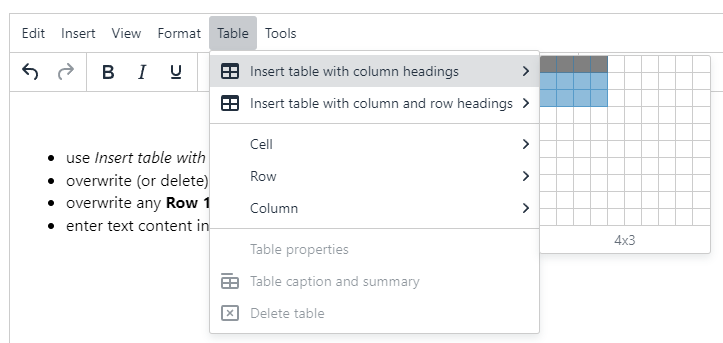
- use Insert table with column headings to select the grid size required
- overwrite (or delete) the text Column 1 and Column 2 etc. with column labels
- enter text content into blank cells
Example tables with column headings
Example tables with column headings
| Column 1 | Column 2 |
|---|---|
| content content content content content content content | content content content content content content content |
| Column 1 | Column 2 | Column 3 |
|---|---|---|
| content content content content content content content | content content content content content content content | content content content content content content content |
| content content content content content content content | content content content content content content content | content content content content content content content |
| Column 1 | Column 2 | Column 3 | Column 4 |
|---|---|---|---|
| content content content content content content content | content content content content content content content | content content content content content content content | content content content content content content content |
| content content content content content content content | content content content content content content content | content content content content content content content | content content content content content content content |
| content content content content content content content | content content content content content content content | content content content content content content content | content content content content content content content |
Acceptable options for tables
Acceptable options for tables
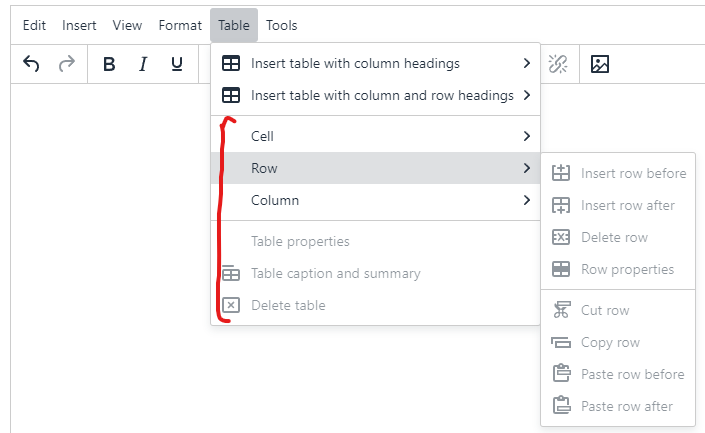
Table Properties, Cell Properties, Row Properties
Although it's possible to do so, we advise not defining any properties here. They are mainly for setting appearance, which could be overwritten by Webteam in a future design context.
Table Caption/Summary
The recommended Caption will display as a 'heading' for the table.
Captions help users to find a table and understand what it's about. They are the primary mechanism used by screen readers to identify tables.
The optional Summary will display as a sub-heading for the table, and is primarily for more specific accessibility purposes.
A summary gives information about how a table is organized and provides information on how to navigate through its data.
Delete Table
Removes the entire table - can be undone with ctrl-Z.
Cell
We advise not relying on these options for table editing.
Row and Column
Can be used to insert or move rows and columns in the table.