Links to external pages and email addresses
Fragility of external links
Links to external pages and email addresses must be manually updated in their content item if the destination page address (URL) changes or disappears.
All external links from UHI website pages ('hardcoded' links) are vulnerable to breakage if the destination page address changes - the result of following the link will probably show a 404 not found error message.
External links can be copied/pasted between content items.
Creating an external link
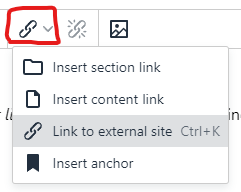
Use the Insert/Edit External Link menu icon for entering a link to a website or webpage external to the pages you can see in the T4 Site Structure, or to an email address.
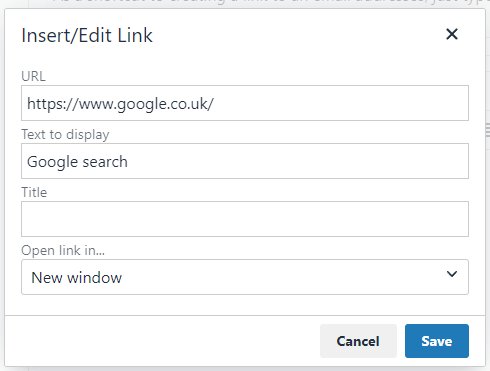
The URL field is the actual link.
For external links, enter the full website address in the Url field, and choose New window as Target.
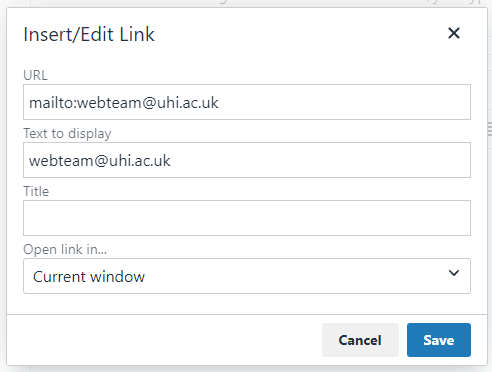
For email address links, enter mailto: before the email address in the Url field. It's good practice to enter the email address again as the Text to display.
Text to display is the visible link text on the page and should adhere to the advice on the creating links page.
When internal links can't be used
If the section you want to link to isn't visible in your Site Structure, you won't be able to create an internal link. In this case then create the link as an External links instead. It may be possible to expand your access to other sections - ask webteam@uhi.ac.uk
An internal Section link can be made to an Event Listing or News Listing page, however links to any specific News article or Event page should be made as Content links or External links instead.
Links from partner sites (e.g. www.nwh.uhi.ac.uk) to the main university site www.uhi.ac.uk - and vice versa - also need to be set up as External links.