Course Banner Image
Preparing banner images
Appropriate images should be sized and uploaded to the Media Library.
Following the guidance for Preparing Photos and Other Images - particularly Cropping and Resizing - create banner images at the following pixel sizes:
- 1400 pixels wide x 410 pixels high
The image files can be named with a course code (e.g. UB700-banner.jpg, N430-banner.jpg etc.) even if they are to be used across multiple courses.
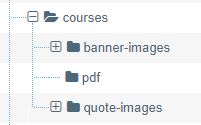
Images should then be uploaded to the relevant banner-images Media Library directory.
Example banner image
Course Banner Images appear at the top of each Course page and have the title above.
Text for course details is derived from fields in the SITS course database - not from T4.
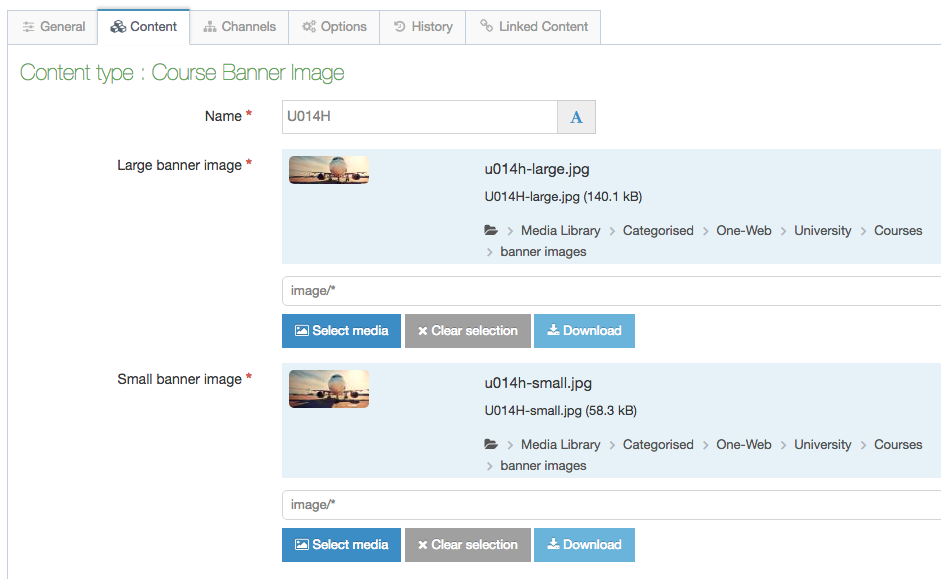
The banner image to accompany each course is stored in the T4 Media Library - banner images are linked to a particular course with one T4 content item (Course Banner Image content type) which defines the banner image.
For example, this banner image could be used for an aviation related course:

Inside a Course section
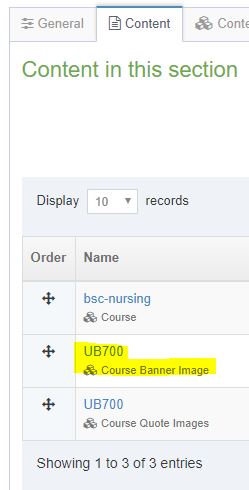
There will already be a content item of type Course in each course section (e.g. bsc-nursing).
A content item of type Course Banner Image is required for custom banners to show on a course page, otherwise the default banner will display.
There may also be a content item of type Course Quote Images, which sets the images used to accompany student, graduate and staff quotes, or another course content type within the course section.
Linking a banner image to a course
In the Section for the particular course edit the Course Banner Image content type or if one is not already there then, using the Create Content button, add a content item of Content Type Course Banner Image.
Name the content item to be the same as the course code affixed with '-banner' (e.g. UB700-banner)
Choose the appropriate banner image within the content type from those already prepared and uploaded to the Media Library.
After the next Publish of the site, the new banner image should appear at the top of the course page.