Cropping and resizing
Do both
When preparing an image to particular dimensions, remember to crop the original image to the same proportions first, otherwise the image will be distorted.
Crop to proportions (ratio) then resize to dimensions.
For example, if you have an original image with dimensions of 500 pixels wide by 600 pixels high that you need in a version of 150 pixels wide x 100 pixels high:
- crop the original image in an editor first, to proportions of 150:100 (the same as ratio of 15:10 or 3:2)
- resize the image to 150 pixels x 100 pixels
Cropping and resizing images to particular dimensions is necessary for creating Banner images for Landing Pages and other Media Library items for use in Content Types.
After cropping and resizing, the image should be optimised when saving for Web use.
Original image 600 x 250 pixels (ratio of 12:5)
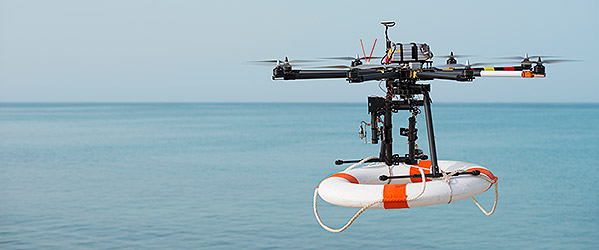
Crop part of image for ratio 3:2 result
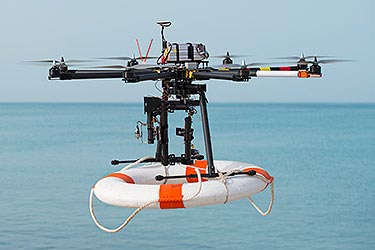
Resized to 150 x 100 pixels - same ratio
Correct - not distorted.

Resized to 150 x 100 pixels - without cropping
Wrong - the ratio goes from 12:5 to 3:2 and the image looks squeezed:

Resized to 320 x 100 pixels - without cropping
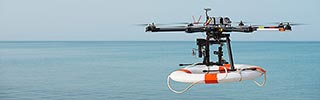
Wrong - the ratio goes from 12:5 to 16:5 and the image looks stretched:
Always reduce image dimensions during processing
The image below is wrong - a smaller image has been resized to become a larger one. Images should always be resized smaller than the original pixel size. Otherwise the image will look degraded.