Content status
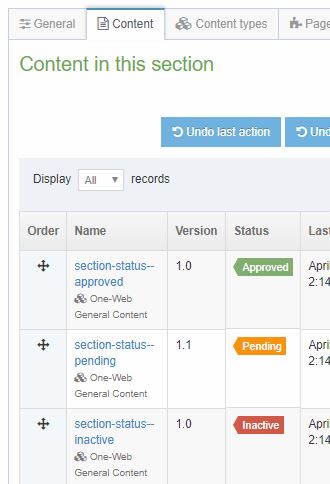
Content Items can have a status of Approved, Pending or Inactive.
This status only applies to the single piece of content within the Item, on the page generated by the parent Section.
Approved
Only Approved Content Items (green tag) will Publish to the live site.
Most existing Content Items within the site you are editing will have this status.
Pending
New content items
When first created, content items are set to pending. Pending Content Items (orange tag) will not Publish to live, but can still be Previewed. Use this status while building Content Items within the section, which you need to test before Publishing.
The Save Changes button when editing a Content Item will save your content as Pending.
To Approve a Pending Content Item
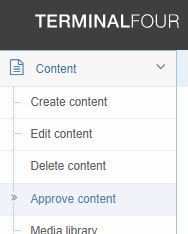
- In the top left Content dropdown navigation menu, choose Approve Content.
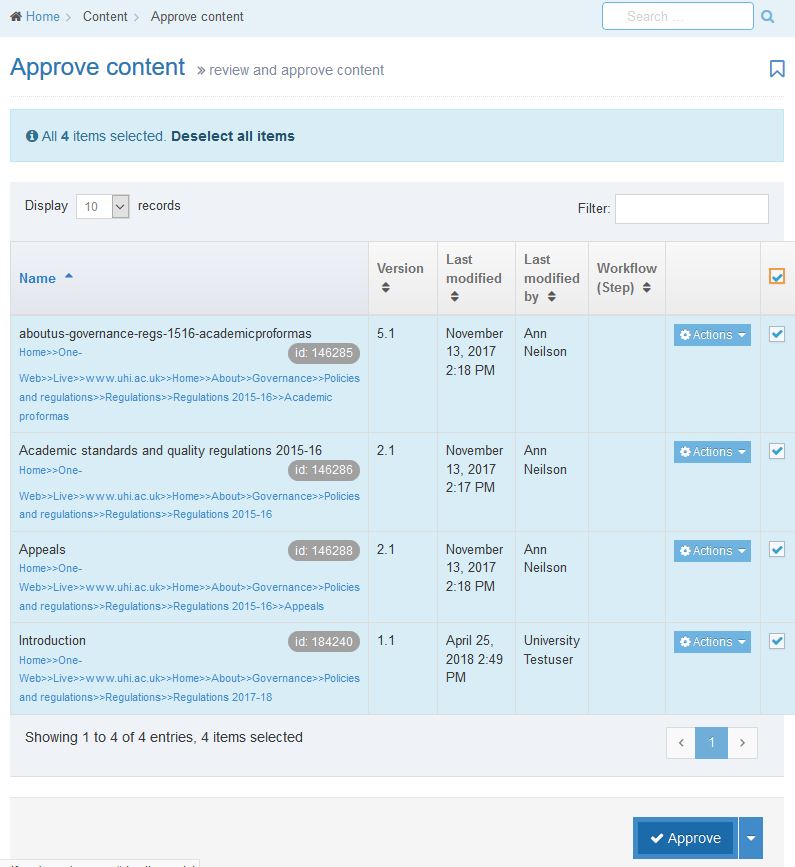
- In the Approve Content list of Pending items:
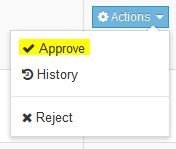
- either use Actions : Approve on an Item
- or tick the box next to the Item and use the Approve button.
The Item will then Publish to live according to the current schedule.
After first Publish
After a content item has been approved and published, that version of the content item will remain live, even if changes have been made and the item is pending, until the further changes are approved. If a Content Item needs to be 'hidden' from the live site, setting it to Pending will not remove it. Instead, use an Expiry date on the Content Item for temporary 'unpublishing'.
Inactive
Marking a Content Item as Inactive (red tag) means that you intend it to be completely removed. This may happen at any point in the future, depending on Webteam's schedule.
Do not treat this as a Recycle Bin - although you will be able to restore this Item while you see it marked as Inactive, the timescale for actual deletion is beyond your control.
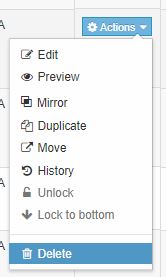
To mark an Item as Inactive, use Actions : Delete or tick the relevant box(es) and use Bulk Actions : Bulk Delete.
To restore an Inactive Item to Pending, just open it for editing then Save Changes (no edits actually need to be made).
Always check content updates
This applies to changes made either by yourself or by Webteam.
Force refresh your browser for the latest page version by using ctrl-F5 (PC) or cmd-R (Mac). This tells your browser to go and get the latest version of the page from the server. Clicking the refresh icon alone in your browser won't always work - this only does a soft refresh, without re-loading any linked files.
A Preview version of a page will always display the latest updates. If Webteam have forced a Publish, or the scheduled publish time has passed, check the published (public) version of the page on the live site and remember to force refresh.